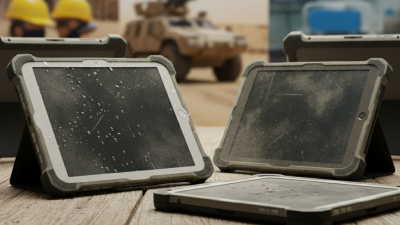
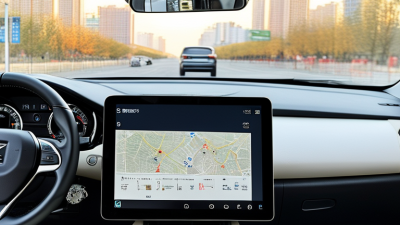
Think about a tablet in a warehouse—one minute it’s in a cool office, the next it’s out in a dusty loading bay. It might be mounted on a forklift, used with gloves on, or carried through a loud service area. That’s exactly the kind of setting where Windows Rugged Tablets make sense: teams get the familiar desktop software they need, but in a durable, portable device that can keep up. I mean, they can help with things like checking inventory, reviewing work orders, or entering inspection results right next to the equipment. That means fewer trips back to the desk. And yeah, small gains matter—they add up.
Honestly, the right model really comes down to the work you’ll actually do—not just how rugged it looks on paper. So dig into the details: drop-test ratings, IP ratings, operating temps, battery life, screen visibility, ports—all of it. And don’t assume your everyday tools will just work; make sure your Windows apps, scanners, docks, and wireless networks are all compatible with the configuration you’re eyeing. A brighter screen definitely helps outdoors, but even then, direct sunlight can make any display tough to read. No device is perfect, period. Honestly, before you commit to a rugged tablet, it’s worth getting one in your team’s hands and running your actual apps and peripherals on it. You’d be surprised what that uncovers—weird grips, sluggish workflows, or batteries dying faster than expected. Those are the things spec sheets never tell you. But if you do that homework, Windows Rugged Tablets can be a really solid middle ground: portable enough, compatible with what you already use, and tough enough for serious business.
What Defines a Windows Rugged Tablet
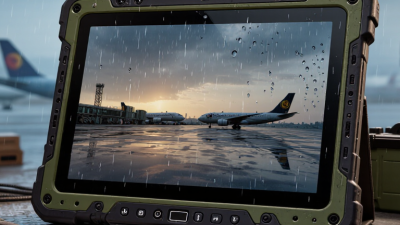
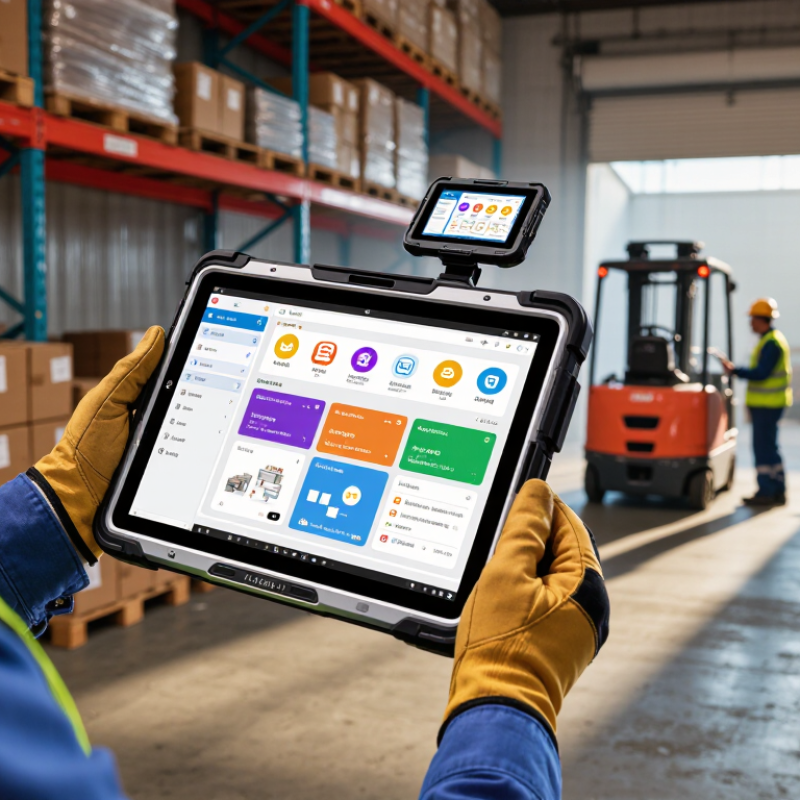
A Windows rugged tablet is more than a standard tablet inside a thick case. It pairs the Windows operating system with hardware designed for demanding work environments. Depending on the model, features may include sealed ports, reinforced corners, a sunlight-readable display, or tested resistance to dust, water, drops, and vibration. Protection has limits. An ingress rating or drop-test result applies under specific conditions, not every mishap on a busy site. Rugged does not mean indestructible.
The Windows platform can run familiar business applications and connect with existing device-management systems, depending on configuration. The hardware should suit the actual job. Field technicians may need glove-friendly touch input, a swappable battery, or ports for diagnostic equipment. Warehouse teams might benefit from a hand strap and a bright screen beneath high-bay lights. These features are not universal, so check the specifications carefully. A tablet that handles a cold vehicle but cannot run a required application is still a poor fit. Testing it with real workflows takes time, but it can reveal inconvenient details that a product sheet misses.
Why Choose Windows Rugged Tablets for Business?
What Defines a Windows Rugged Tablet?
Ruggedness is defined by tested physical protection, not by the Windows operating system. The chart shows examples from IEC 60529: the first IP digit describes protection against solid objects and dust, while the second describes protection against water. These digits are classification codes, not scores, so ratings from the two categories should not be compared as a single scale. For business use, check the specific tablet’s tested rating alongside its operating conditions and Windows software requirements.
Reference: IEC 60529, Degrees of protection provided by enclosures (IP Code).
How Rugged Tablets Protect Against Harsh Conditions
Why Choose Windows Rugged Tablets for Business?
On a dusty warehouse floor, fine grit can work into ports and buttons. In a service truck, sudden bumps may loosen ordinary equipment over time. Rugged tablets are designed to handle these daily stresses with reinforced housings, protected connectors, and shock-absorbing internal structures. That protection matters when a work order must be checked beside a loading bay, not after returning to an office.
Sealed enclosures help limit exposure to dust and splashes, while tested designs can tolerate vibration and temperature changes. Check the device’s published ratings before use; “rugged” does not mean waterproof or indestructible. A glove-friendly touchscreen and a bright display can also make records easier to read outdoors. Still, direct sun, heavy rain, and thick gloves can affect usability. Small details matter.
For teams using Windows software, Tough Tablets Windows devices can keep familiar forms and field applications available in challenging settings. Choose a model around the actual job: a technician climbing a ladder may value a lighter unit, while a vehicle-mounted tablet needs a secure fit and stable power. Inspect seals, ports, and screen protectors regularly. Damage can be easy to miss. Rugged hardware reduces risk, but careful handling and maintenance still count.
Key Hardware Features for Business Use
A Rugged Windows Tablet should be selected for its hardware fit, not by its thick shell alone. Start with the display: a bright panel helps crews read maps beside a loading bay or outdoors, while glove-compatible touch keeps input practical. Check the published brightness and ingress rating for the exact configuration; specifications can differ between models. Small details matter.
A sealed chassis can reduce dust and splash exposure, but ports still need suitable covers and inspection. For vehicle or field work, a replaceable or hot-swappable battery can prevent downtime during long shifts. Confirm that the workflow supports battery changes safely. An SSD, enough memory, and a processor matched to the workload help avoid slowdowns; maximum capacity is not always useful. Ports, docking options, and wireless radios should match existing scanners, sensors, and network coverage. Planning can be imperfect: teams sometimes discover a missing connector only after deployment. Test a sample unit with actual gloves, mounts, and applications before ordering at scale. Review repair access and warranty terms, too. Rugged hardware still wears out.
Windows Compatibility and Enterprise Software
Rugged Tablets can run familiar Windows applications used for scheduling, inventory, inspection records, and field reporting. That can reduce retraining when staff move between office computers and mobile workstations. A technician might open the same spreadsheet at a warehouse loading bay, then attach inspection photos before returning to the office. Familiar workflows matter.
Compatibility still needs checking. Older desktop software may depend on specific drivers, ports, or screen layouts. Before deployment, test the actual applications on the tablet, including barcode readers, printers, and any required peripherals. A program that opens successfully may still feel awkward on a smaller touchscreen. That detail is easy to miss.
Windows-based devices can also fit into existing IT processes, such as user permissions, software updates, and network access controls. IT teams should confirm that the chosen configuration meets their security and support requirements. Consider battery life and glove-friendly touch input during real shifts, not just a quick desk test. Small trial, big lesson. And compatibility is not automatic; some legacy tools may need adjustment, while others may not suit mobile use at all. It is worth documenting those limits before ordering devices for a whole team.
Common Business Applications and Industries
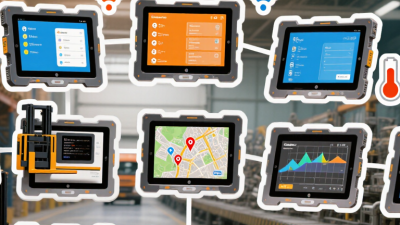
Windows rugged tablets support business tasks that depend on desktop software, reliable connectivity, and clear data entry. In warehouses, staff can check inventory, scan labels, and update orders beside storage racks. Field technicians can view service records, annotate diagrams, and complete inspection forms at customer sites. That saves steps. Dust happens. So do sudden schedule changes.
Manufacturing teams may use these tablets to review work instructions near production lines, where gloves and vibration can complicate ordinary touchscreen use. Utilities and construction crews can record readings, inspect plans, and share site updates outdoors. Vehicle-mounted units also help delivery teams review routes and confirm job details between stops. Rugged Android Tablets may suit mobile workflows built around Android apps, while Windows models can fit organizations using Windows-based business tools. The right choice depends on software, peripherals, and working conditions—not simply the operating system.
Tips: Test the tablet with the actual forms, scanners, gloves, and network coverage employees use. Check screen readability in bright sunlight and confirm that ports support required accessories. Ask workers to trial the workflow during a normal shift. A device can be durable yet awkward to carry or slow to enter data. That gap is easy to miss in a meeting.
Operational Benefits and Practical Limitations
Why Choose Windows Rugged Tablets for Business?
A Windows rugged tablet can help field teams use familiar desktop software without carrying a laptop. In a warehouse, staff can scan labels, check inventory, and update records beside a loading bay. A bright screen and glove-friendly touch controls can reduce interruptions during outdoor inspections. Physical ports may also connect the tablet to existing scanners or diagnostic equipment. That can simplify a deployment, but only when the ports match the tools already in use.
Rugged construction helps with drops, dust, and splashes, yet it does not make a device indestructible. A cracked screen, worn charging port, or loose connector can still interrupt a shift. Heat still matters. Battery life varies. A bright display, wireless connections, and demanding applications may drain power faster than expected, so test a full workday under real conditions. Windows devices can also require more setup and maintenance than simpler mobile platforms. Security updates, application compatibility, and device management need regular attention. A tablet may feel heavy after hours of handheld use, especially with a protective case attached. These trade-offs are easy to overlook in a product comparison. Check repair options, accessory costs, and employee feedback before standardizing on a model.
How to Select a Tablet for Business Needs
Choosing a tablet for business starts with the workday, not the specification sheet.
Map where employees use it, what they carry, and which applications they need. A warehouse team may scan labels with gloves on, while a field technician may need Windows software for service records.
Small details matter. Check whether the screen stays readable under bright lights and whether buttons work with wet or gloved hands.
Match durability to real risks. A tablet used near loading bays may face repeated bumps, dust, and temperature changes. Compare tested drop height and ingress protection, then confirm the conditions behind those ratings.
Ask staff to handle the device with its case, scanner, or hand strap fitted. It may feel too heavy after a full shift. That is easy to overlook.
Also check battery performance during a typical workday, charging options between shifts, and available ports or wireless connections.
The operating system should fit existing workflows.
Windows rugged tablets can suit teams that rely on desktop applications or established IT tools; Android Rugged Tablets may fit mobile-first tasks. Neither choice is automatically better.
Verify software compatibility, security updates, device management, and support duration before ordering. Pilot a few units in actual work conditions, and record what slows users down.
A short trial can reveal awkward mounts, unreliable connections, or a keyboard that nobody wants to carry. That feedback may challenge the original plan, but it is useful.
How the Vehicle Tablet T10 Pro Supports Reliable Work in Agriculture, Mining, and Logistics
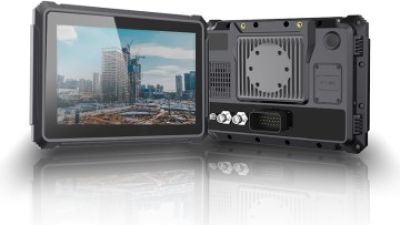
The 10.1-inch Vehicle Tablet is designed to keep essential information accessible across demanding agricultural, mining, and logistics operations. Its high-brightness IPS display, 1280 × 800 resolution, and wide viewing angles help operators read maps, work orders, and equipment data in direct sunlight. A responsive multi-touch screen and eight-core processor support smooth use of field applications, while 4 GB of memory and 64 GB of storage provide room for everyday tools and records. Storage can be expanded with a memory card, and the device runs Android 11 or 13.
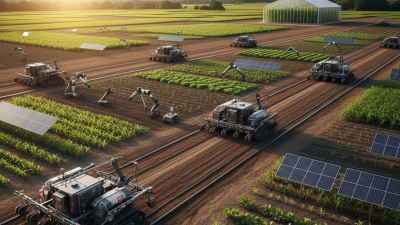
For agricultural vehicles, the tablet can support route guidance and precision positioning; in mining and construction, it can connect with vehicle systems and cameras to help operators monitor work in progress. Logistics teams can use its GNSS, 4G LTE, Wi-Fi, and Bluetooth connectivity to access location and operational data while on the move. Two CAN interfaces and support for up to four 720p cameras broaden its integration options. A rugged enclosure, IP66 protection against dust and water, vibration resistance, and a 9–36 V input range suit installation in vehicles exposed to challenging conditions. Configurable rear I/O and an available software development kit allow the system to be adapted to different workflows.
FAQS
Sealed enclosures help limit dust entering ports and buttons. Dust happens. Check seals regularly.
Not necessarily. Check the device’s tested protection ratings before exposing it to rain or splashes.
Warehouse staff can scan labels and update orders near storage racks. Field technicians can review service records and complete inspection forms.
Try actual forms, scanners, gloves, and network coverage. A durable tablet can still feel awkward during a full shift.
A bright display can help workers read records outside. Direct sunlight may still make the screen difficult to see.
Match the system to existing software and daily workflows. Neither option is automatically better.
Check tested drop height, dust and splash protection, temperature tolerance, and vibration testing. Ratings have specific conditions.
A short trial can reveal heavy mounts, weak connections, or tiring accessories. Meetings miss things.
Conclusion
Windows Rugged Tablets are designed for business users who need dependable computing in demanding environments. Their reinforced construction and protective features help guard against drops, dust, moisture, vibration, and temperature changes, while practical hardware such as bright displays, responsive touchscreens, long-lasting batteries, and versatile connectivity supports work in the field. Running Windows also makes these tablets suitable for many organizations that rely on familiar desktop applications, enterprise software, and established workflows.
Businesses across logistics, manufacturing, construction, utilities, and field services can use rugged tablets to access information, record inspections, manage inventory, and communicate on the go. They may improve mobility and reduce interruptions, though added durability can mean greater weight or cost than consumer devices. Choosing the right model involves assessing the work environment, required software, battery life, screen visibility, connectivity, handling needs, and budget. A tablet that matches both operational demands and everyday tasks can help teams work more efficiently.
 +86 13717134343





 CONTACT PDS
 CONTACT PDS
 CONTACT PDS